After completing your subscription, you will receive an email with this file: MT4TradeMngrLicense_Official_xxx.zip
Step-by-step (Windows)
1) Download and unzip the package
Save the ZIP from the email, then unzip it (right-click → Extract All…).
You will see 2 files:
– MT4 Trade Manager EA.ex4
– MT4TradeMngrLicense_Official_xxx.ex4
2) Open the MT4 Data Folder and find Experts / Indicators
In MT4: click File → Open Data Folder. Windows Explorer will open your MT4 Data Folder. Open the MQL4 folder, then you will see Experts and Indicators.
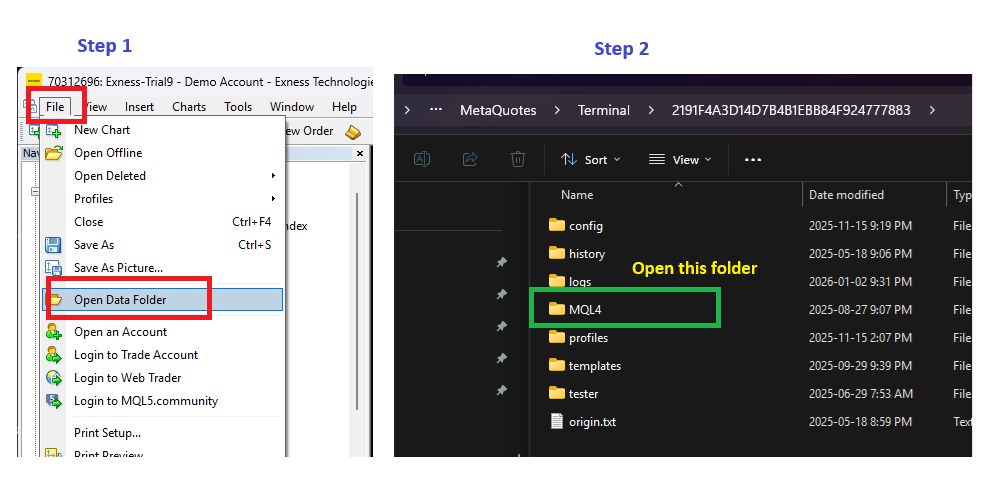
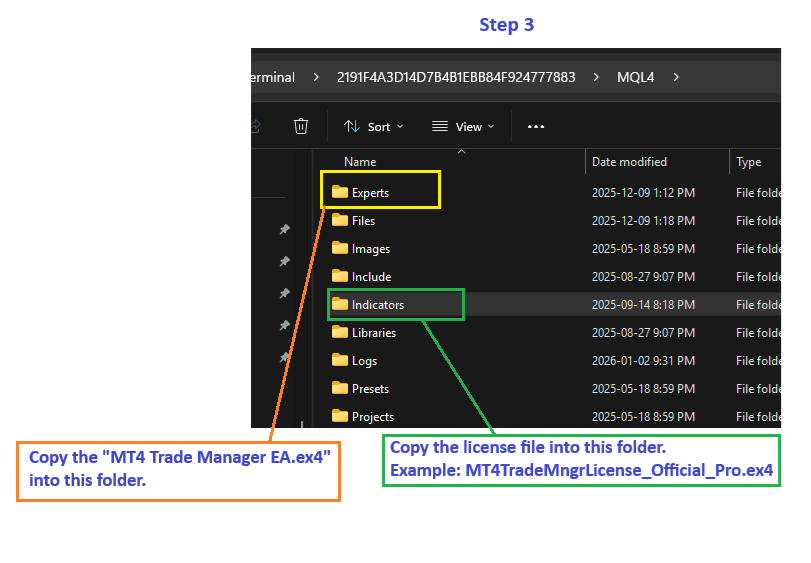
3) Copy the 2 files into the correct folders
Copy the files exactly like this:
- MT4 Trade Manager EA.ex4 → MQL4\Experts
- MT4TradeMngrLicense_Official_xxx.ex4 → MQL4\Indicators
Tip: Always copy files into the MT4 Data Folder (File → Open Data Folder). Do not copy into Program Files.
4) Turn AutoTrading ON (top toolbar).
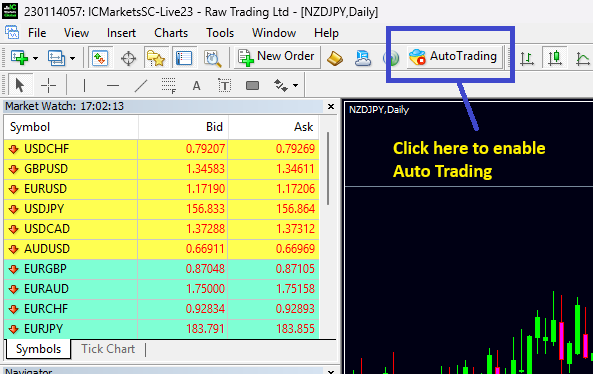
5) Enable Live Trading, DLL, and the License Server URL
Open the EA settings (Common tab)
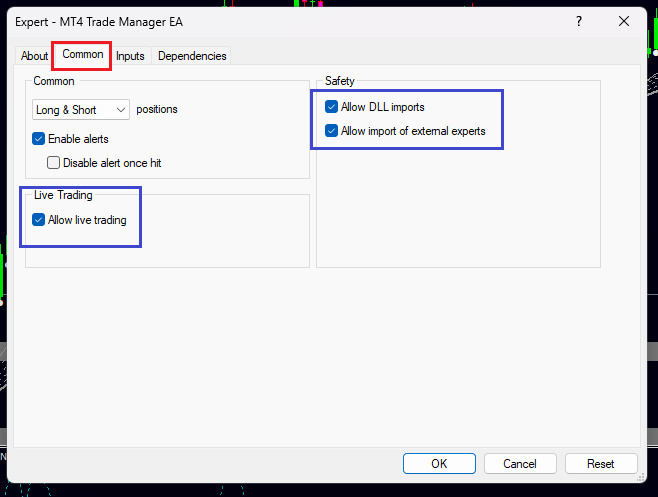
- Allow live trading
- Allow DLL imports (only if prompted by MT4 / required by your broker)
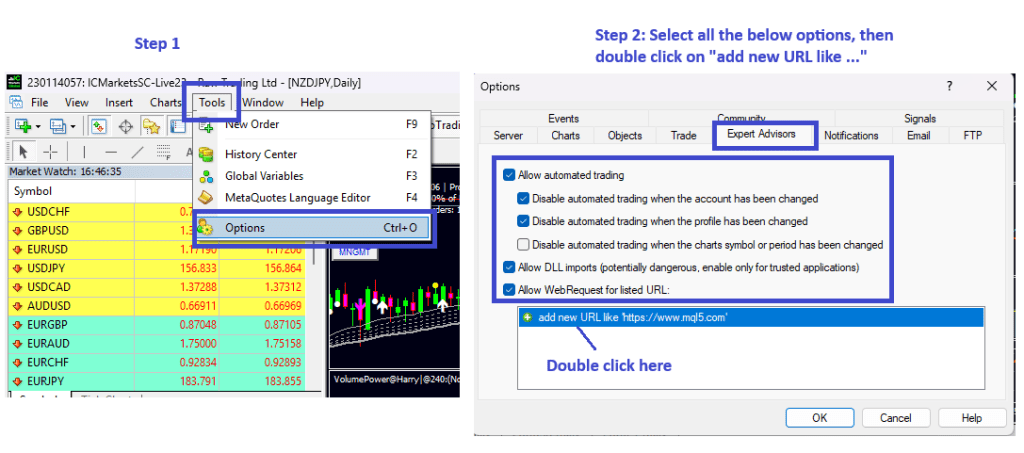
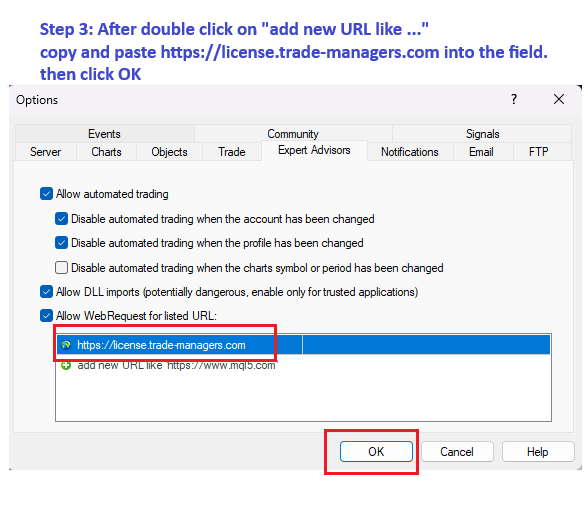
In MT4 go to Tools → Options → Expert Advisors and enable the following, then add the license URL: - Allow automated trading
- Allow DLL imports
- Allow WebRequest for listed URL → add: https://license.trade-managers.com
5) Restart MT4 or Refresh Navigator
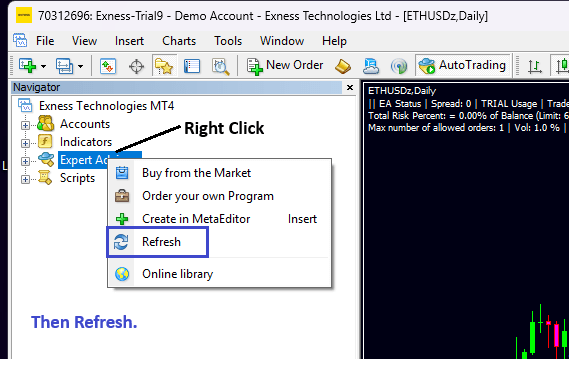
Close MT4 completely and open it again. Or, in Navigator (Ctrl+N), right-click and choose Refresh.
6) Attach the EA to your chart
Open a chart (any symbol/timeframe you want to trade). Then:
- Drag MT4 Trade Manager EA from Navigator → Expert Advisors onto the chart.
- In the first time opening the EA, select “Live Trading” and “Allow DLL import ” in the EA property as below screenshot.
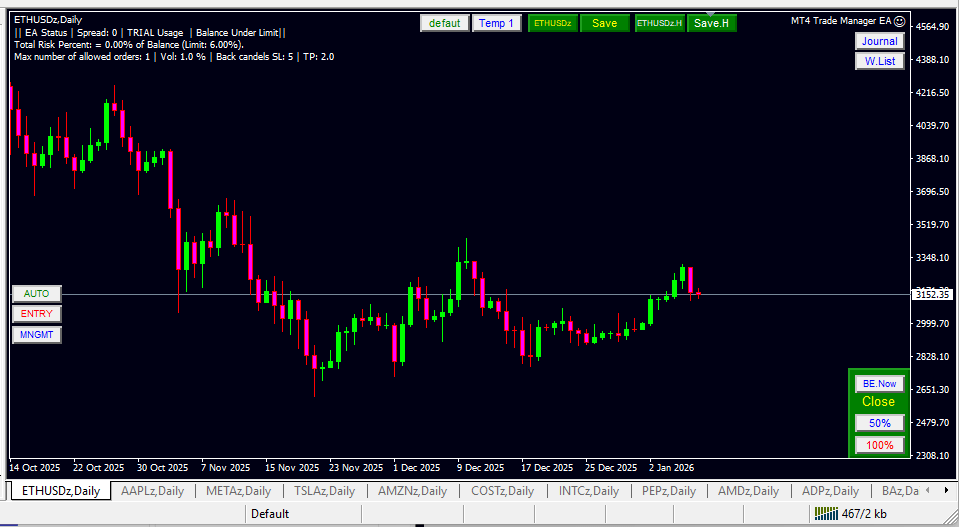
Then EA should be running:
7) Quick troubleshooting
If you do not see the EA / indicator in Navigator, or the EA is not running, use these quick checks all above the steps.
Need help? Contact support and include a screenshot of: (1) your MQL4\Experts folder, (2) MQL4\Indicators folder, and (3) the MT4 Experts tab messages.


 MT4 Trade Manager EA