Free License available – Click Here
MT4 Trade Manager EA provides 04 methods to setup stoploss for a trade including stoploss line, ATR stoploss, “back candles” stoploss and fixed stoploss value. Traders can set up these parameters on EA’s properties or via Entry Dashboard on chart.
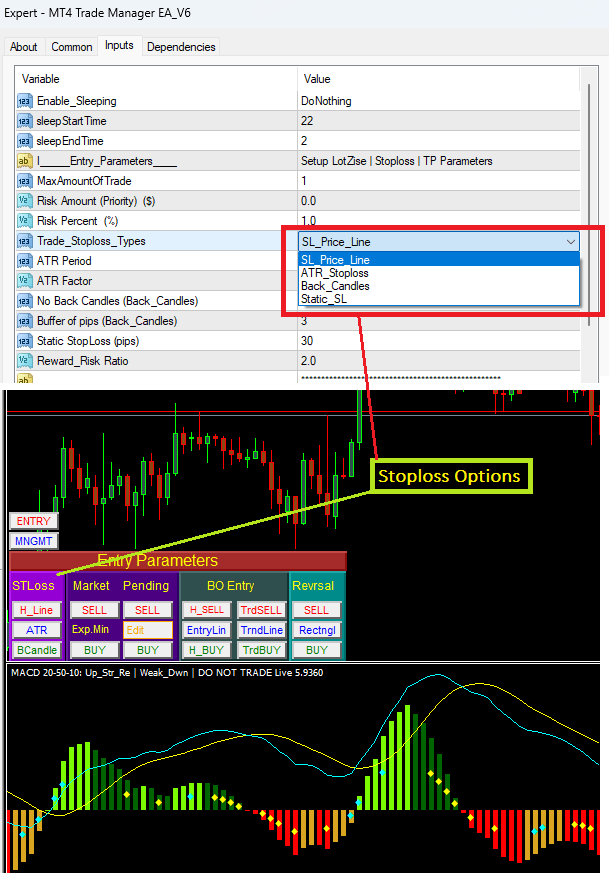
The EA will place stoploss per your instruction, no matter if the stoploss is narrow or wide that does not impact to the above risk volume and TP. For example, you risk 1,000 USD for a trade, it will calculate respective volume regardless the stoploss is 30 or 50 pips.
Now let’s explore the four options of Stoploss which help you to define and place a suitable stoploss according to the market conditions and your strategy.
Option 1: Using Stoploss Horizontal Line
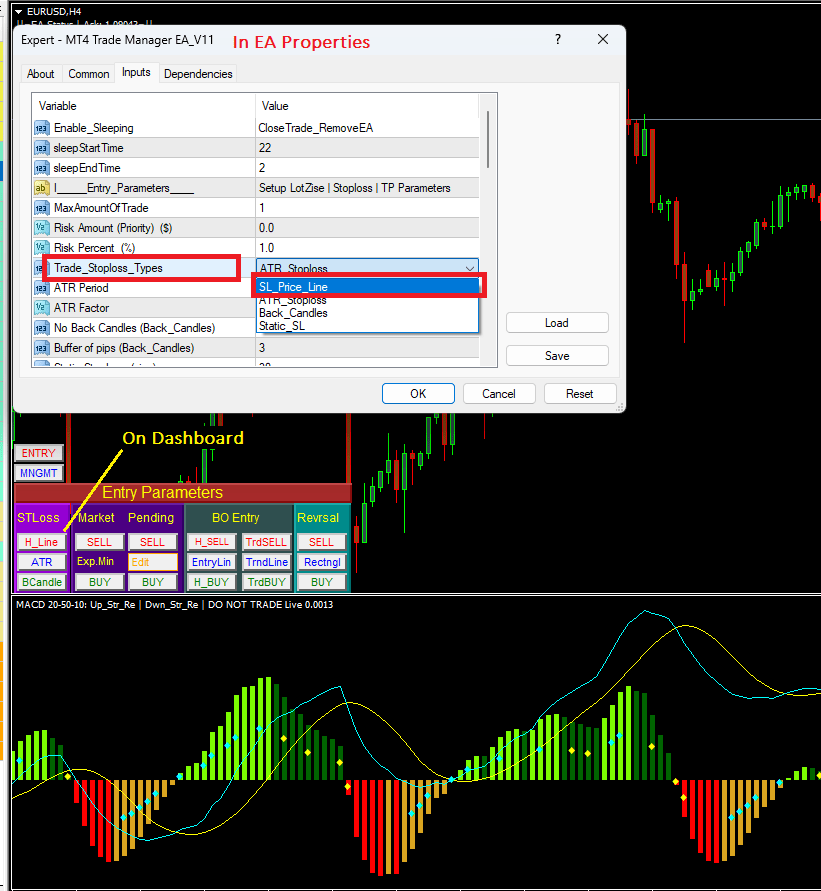
This is the most useful method to place a stoploss. Traders can enable this option by either first select Trade_Sloploss_Type as “SL_Price_Line” in EA properties OR simply click on “H_Line” in the Entry Parameters Dashboard as in above screenshot.
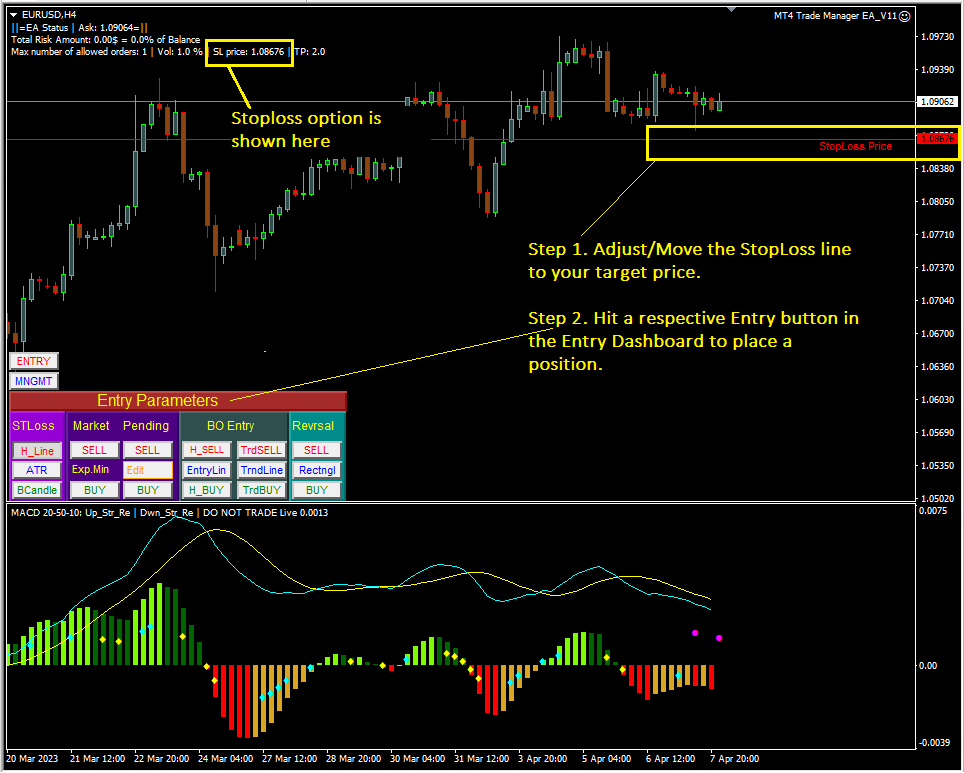
Then, the EA will automatically draw a red horizontal line (stoploss line) on chart, traders adjust the line to a target stoploss price, then hit an Entry Button in the yellow box as shown above screenshot. When a position is placed, a stoploss will be set right at the red horizontal line with a respective volume setup in Risk Management section.
Option 2: Using ATR Stoploss
It is common to see many traders determine stoploss based on Average True Range (ATR) value, this is because ATR represents for current volatile market condition; a higher ATR indicates a more volatile market, while a lower ATR indicates a less volatile market. By using a certain percentage of ATR, you ensure your stop is dynamic and changes appropriately with market conditions.
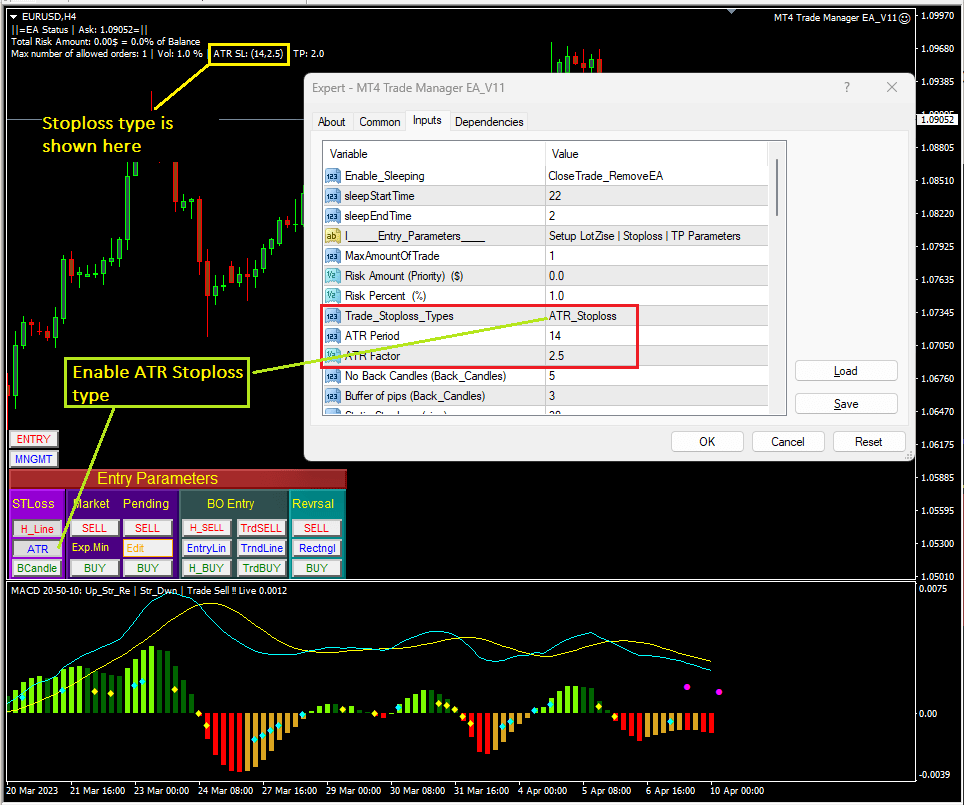
To set up ATR parameters, let’s press F7 to open EA properties, and input the period and factor as your strategy. Traders can enable this option by either first select Trade_Sloploss_Type as “ATR_Stoploss” in EA properties OR simply click on “ATR” button in the Entry Parameters Dashboard as in above screenshot.
Hereafter is an example of using ATR = 14, factor = 2.5, it shows a good stoploss position.

Option 3: Using “Back_Candles” method to place Stoploss
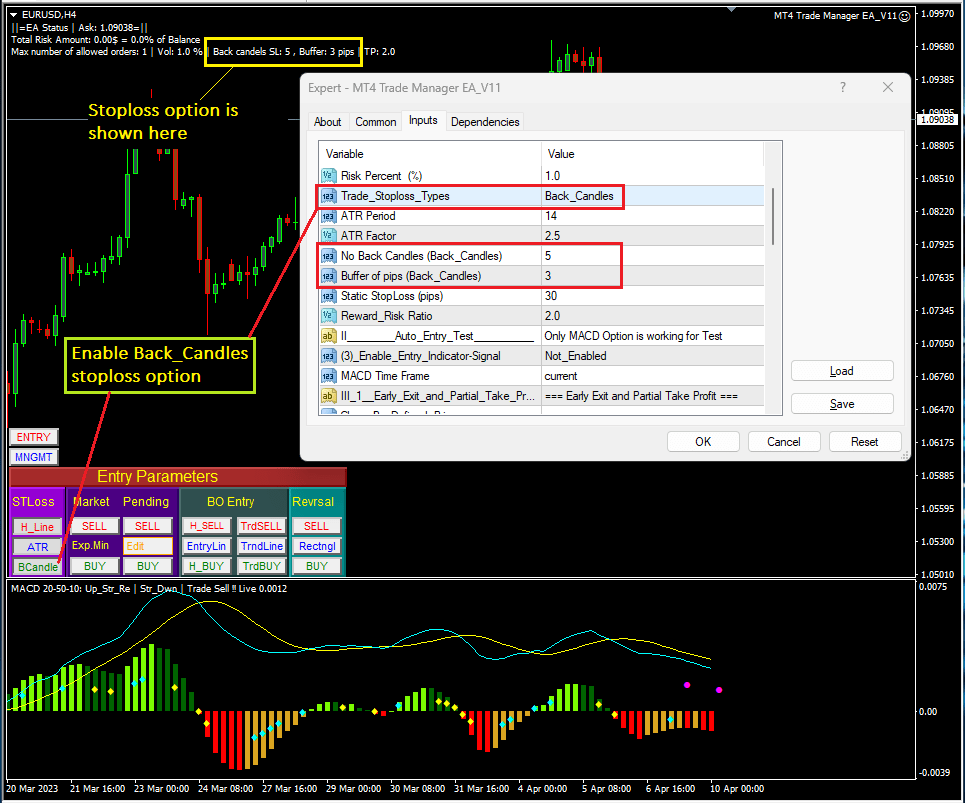
Press F7 to open EA properties and setup below parameters: No Back Candles: the number of back candles that the expected Stoploss will be placed just below/above the lowest/highest wick of the range of candles.
Buffer of pips: the number of pips is the distance between the lowest/highest wick and the stoploss. The default value 03 pips mean that the stoploss is 3 pips below the lowest wick for Buy order, or stoploss is 03 pips above the highest wick for Sell order.
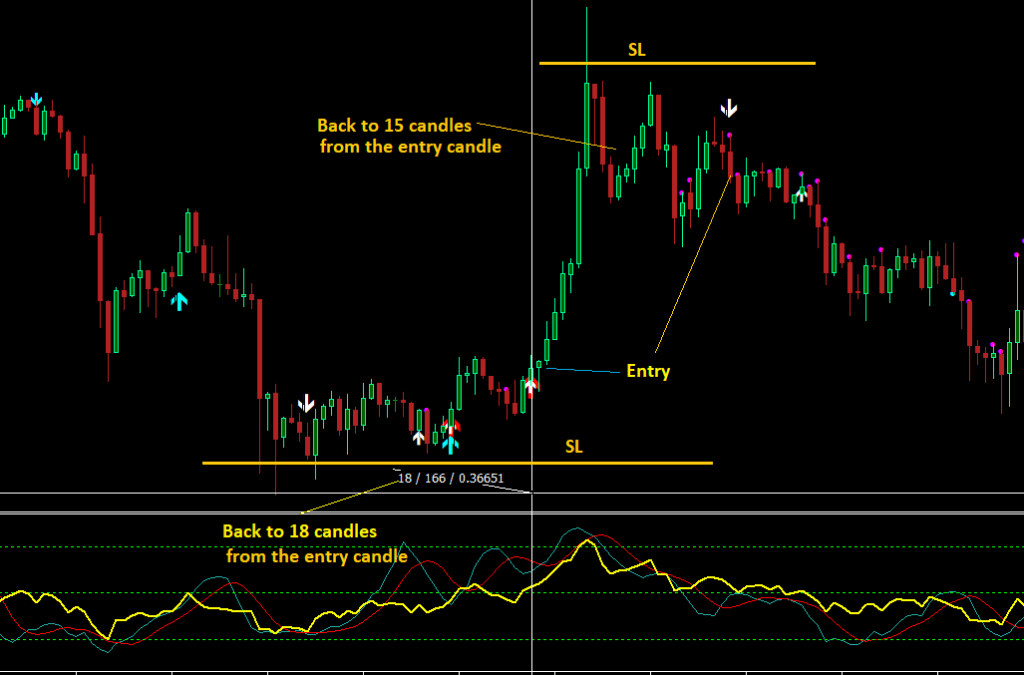
In many cases, it is convenient to use this method as it is common to see the stoploss should be place just below previous bottom/top as below screenshot. This option is my favourite one that I often use in my trades.
Option 4: Set Static StopLoss
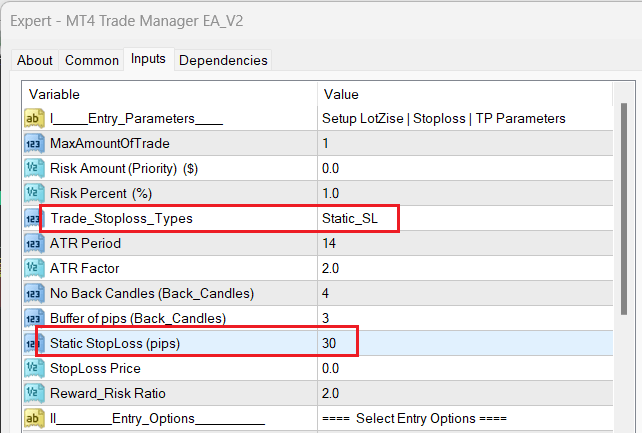
For this method, it is required only number of pips for stoploss as above screenshot, there is no shorcut button of this option on Entry Dashboard.
Below screenshot is an example for set up a static stoploss with 30 pips. It is required to measure the numner of pips for stoploss before it is setup.

Summary:
At this step, we completed setting parameters and know how to use stoploss option. It suggest to save the setup as template which will be used for onward trades, then it will take you less than 30 seconds to place an order.
Next step, we will simply place an order which is market buy/sell, or pending buy/sell.
Thanks for reading !
Back to Welcome || Back to Entry Dashboard || Next to Market & Pending Entries
 MT4 Trade Manager EA